There are 3 components to the withdrawal process in IBKR:
- Link your bank account (required only once)
- Convert currency (only if withdrawal currency is different than the currency of cash held in your IBKR account)
- Initiate withdrawal
To receive money from IBKR in your Wise account on the same day – see this article here (upcoming).
Part 1. Link your bank account
To withdraw funds from your Interactive Brokers (IBKR) account to your bank account, you need to first link & verify your bank account in the IBKR portal. Here’s how.
It is extremely important to ensure that the bank account is held in exactly the same name as the IBKR account. Otherwise the transfer will be rejected.
If IBKR is a joint account and the withdrawal is into a bank account held in the name of one of the joint account holders – that will work!
Login to your client portal via IBKR website:
https://www.interactivebrokers.com/
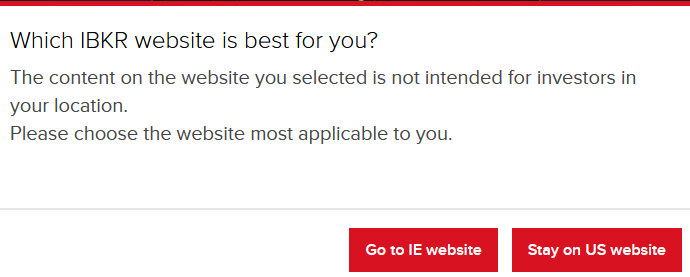
Note that depending on your region/location, IBKR will redirect you to their relevant website and you may see this pop-up. Select the option that is relevant to you.
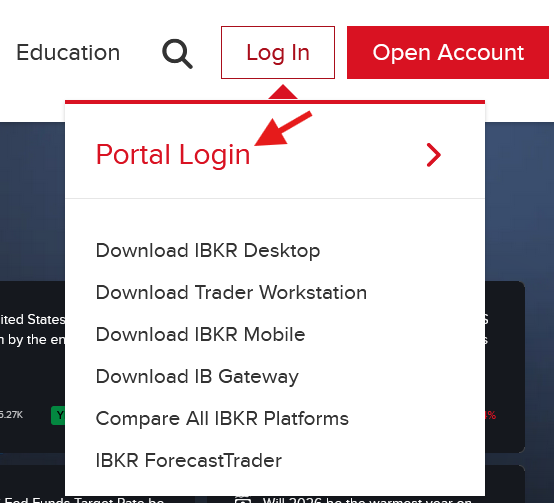
Click Log in (available in the top right corner) and click Portal Login.

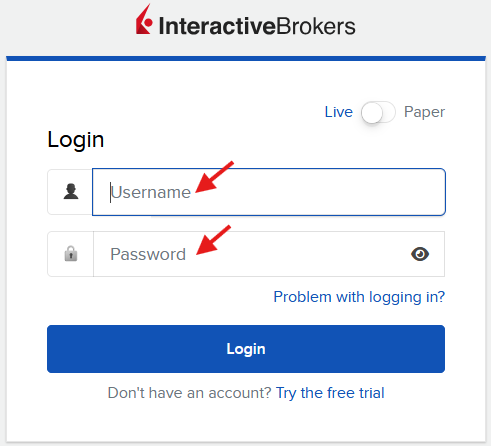
Enter your user credentials and approve via 2 step authentication.
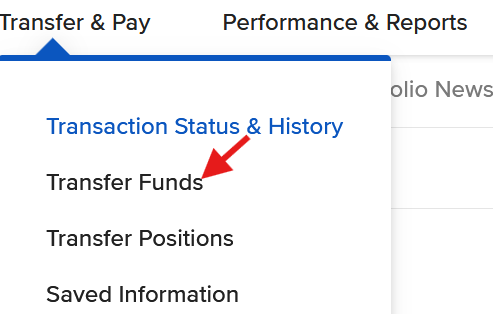
Click Transfer & Pay

And click on Transfer Funds
Click on Select under Withdraw Funds

Click on Use a new withdrawal method.
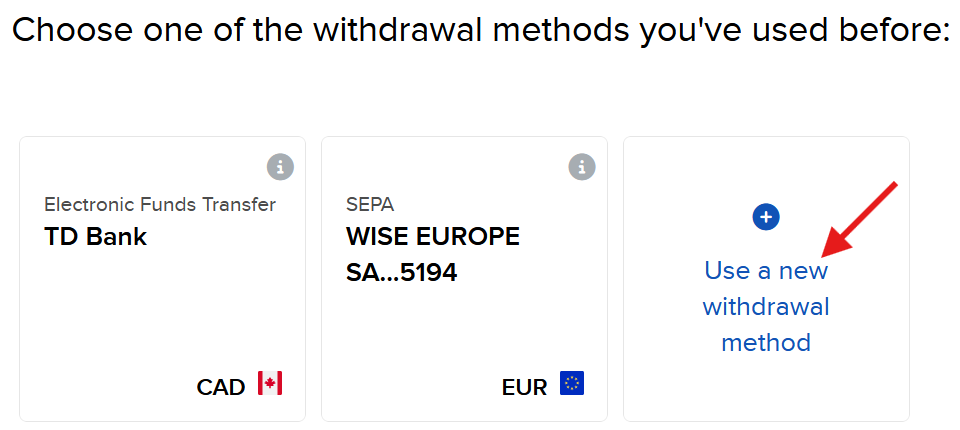
Note that if you have previously set up any withdrawal methods, those will be saved and appear here, e.g. I have linked TD Bank & Wise.
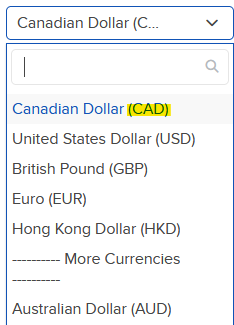
Depending on the currency you want to withdraw, there will be different withdrawal methods available.
For this article, I will use CAD.
To link your Canadian Bank account to IBKR, click on Use this Method under Connect Your Bank via EFT.
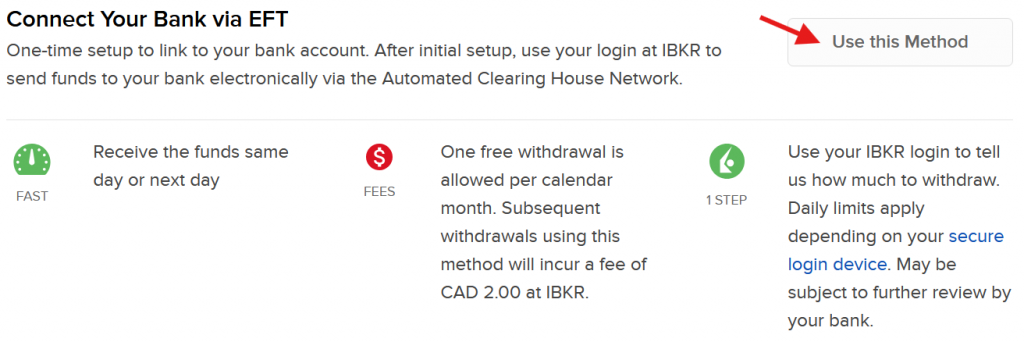
Remember one withdrawal is free per month and subsequent withdrawals will incur a $2 (CAD) charge (as of writing this post).
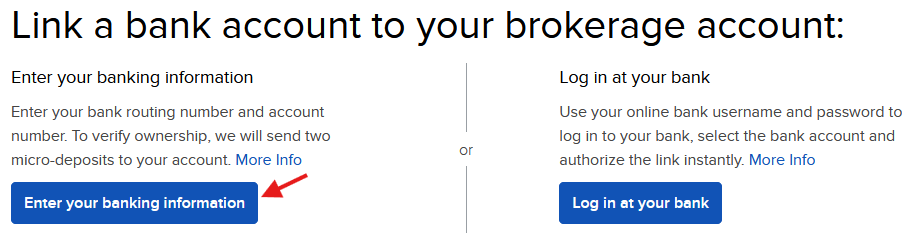
Choose the option to enter your banking information
Select Debit & Credit if you’d like to deposit & withdraw funds from this bank account, otherwise choose Credit – withdraw only.

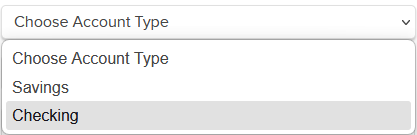
Next, choose whether your bank account type is checking or savings.
Then enter your bank account number and confirm it by re-entering the same.

Then click to locate your bank.
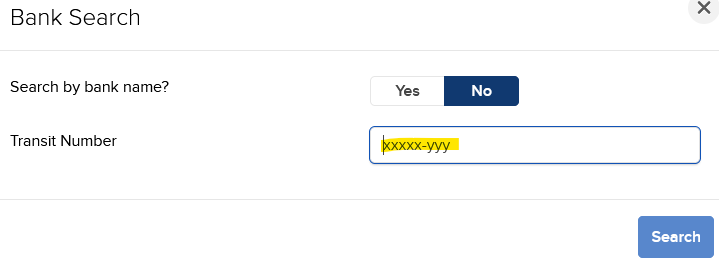
Enter your bank’s transit number and click search, note the format for Canadian Banks (xxxxx-yyy).
You can find the transit number in your web bank under cheque details of the account
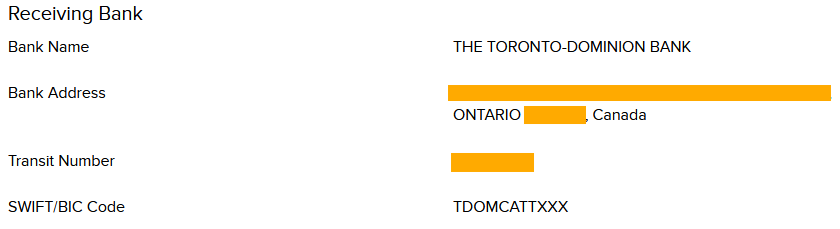
If you enter the transit number correctly, IBKR will find your exact bank branch and display the branch address.
Add an account nickname to identify & choose it easily later.

Finally, click on Save Bank Information.

On the Withdrawal screen the new method will appear with the Nickname you chose.
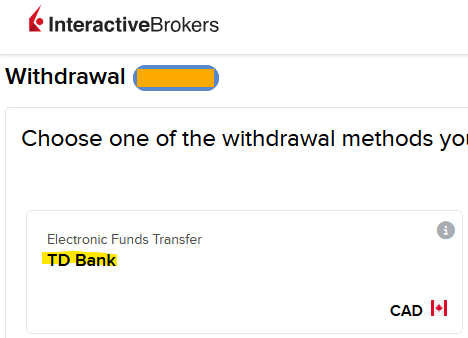
Nice! You have successfully setup your bank account for future withdrawals.
IBKR will soon initiate 2 micro deposits to verify your bank account. You will have to enter the micro amounts back in IBKR client portal to verify those amounts. Think of this as receiving a pin code to verify your phone number.
In my case, it took 2 full business days for the micro deposits to appear on my checking account. It looks like this in TD Bank:

Enter these amounts in IBKR client portal to verify and complete your account setup. You may enter the amounts in any order.
Now your bank account is fully linked, verified and all set to receive money from your IBKR account.
*
Part 2. Convert currency
Login to IBKR client portal and click Trade

Click on convert currency
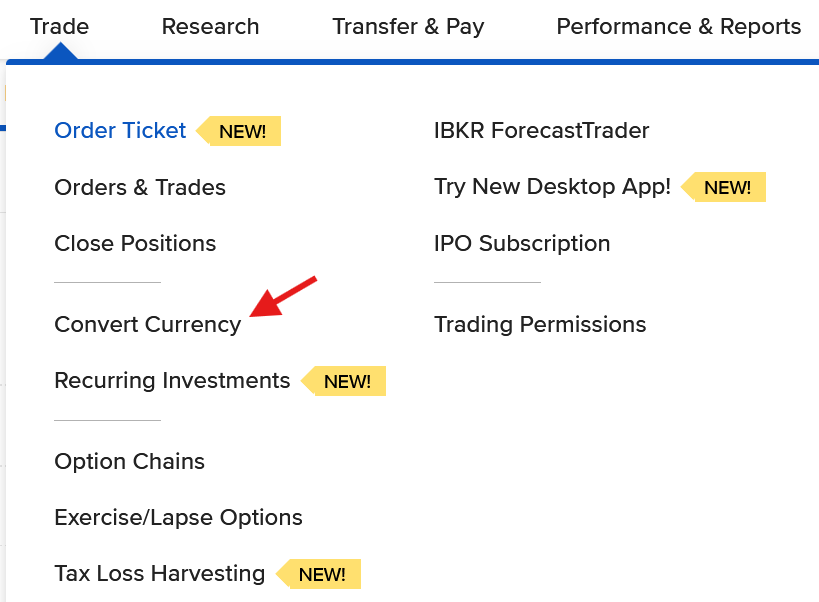
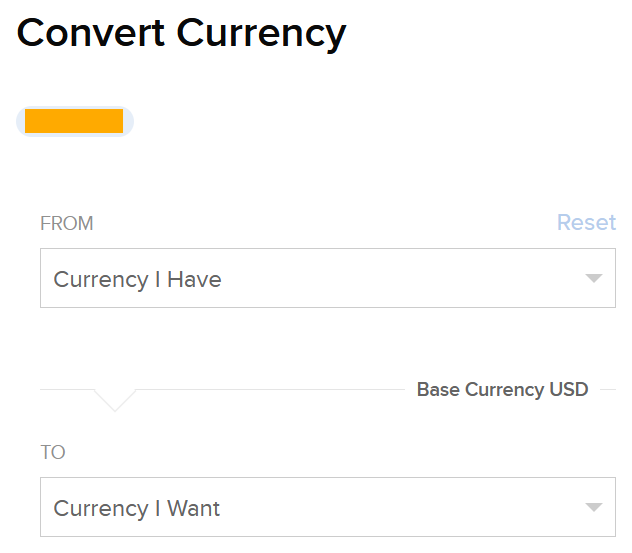
IBKR has recently made a user friendly interface to convert currency. Choose the currency in which you have cash readily available (FROM: Currency I have). Then select the currency you want after conversion (TO: Currency I want) – this is the currency you want to withdraw money to your bank account.
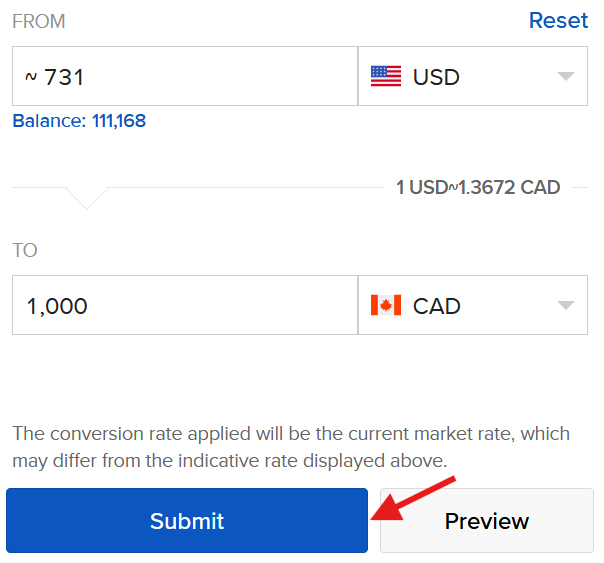
Fill the amount you want to convert or the amount you want to have in the end. For example, here I want to receive 1000 CAD and based on the current FX market rate, the corresponding USD amount is shown. Click submit to execute the FX trade. Generally this will be an odd lot order (you will get a pop-up to acknowledge that) and the trade will be executed immediately.
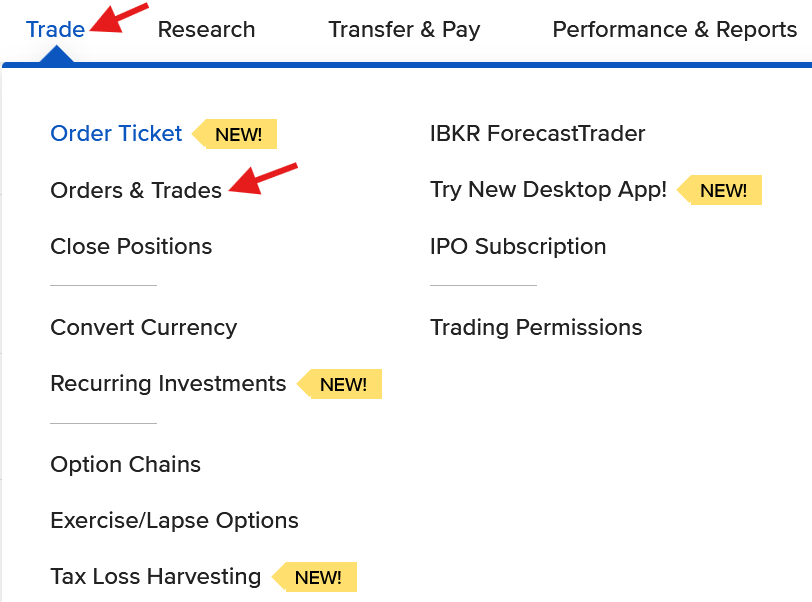
To view the transaction, click Trade and then click Orders & Trades.
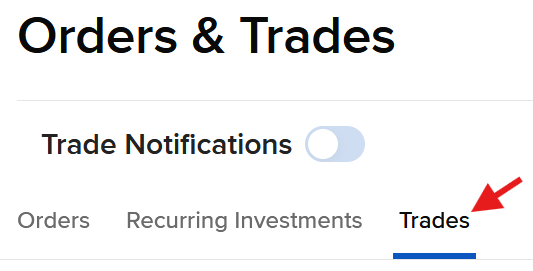
If the order was executed, it is visible under the Trades section. The commission/fee to execute this FX order was 2 USD.
*
Part 3. Initiate Withdrawal
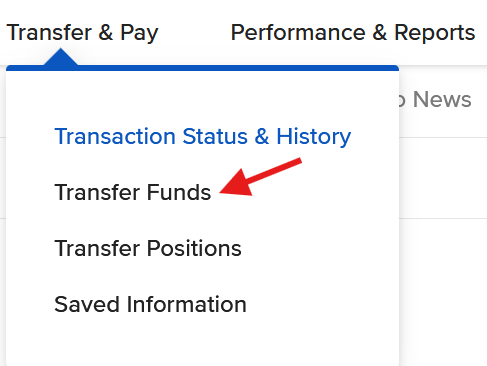
Log-in to IBKR client portal, navigate to Transfer & Pay and click Transfer Funds.
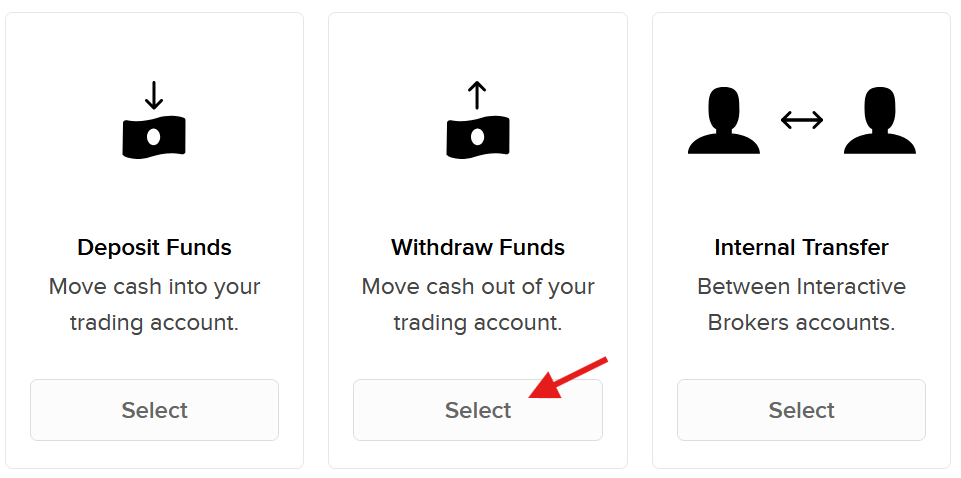
Click Select under Withdraw Funds.
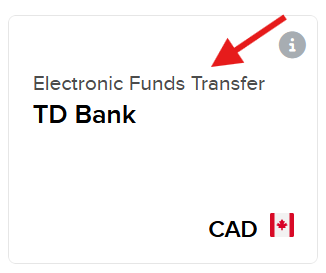
Choose the EFT method you just created in Part 1.
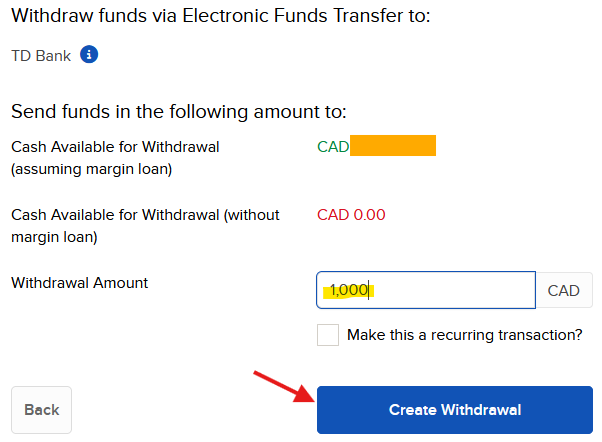
On the next screen, enter the amount in CAD you want to withdraw and click Create Withdrawal.
Important: If you have a margin account at IBKR, then you can initiate the withdrawal right after converting the currency – even if this screen shows CAD 0 available for withdrawal. Otherwise you need to wait T+2 days for currency settlement before withdrawal.
You need to enter your user credentials on the next screen and approve the withdrawal via 2 step authentication.
After that, you should see a confirmation screen like the one below.
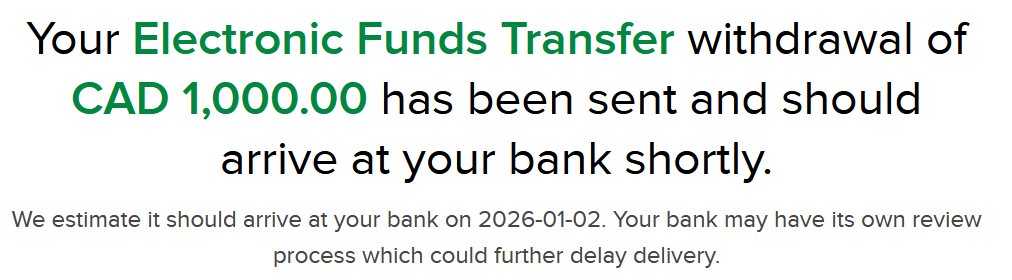
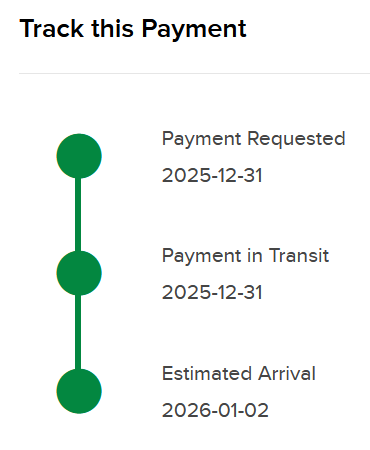
And indeed, on Jan 2, 2026, I received $1000 CAD in my TD Bank.

Congratulations! You made it this far.